Introduction to Tech Signature Design
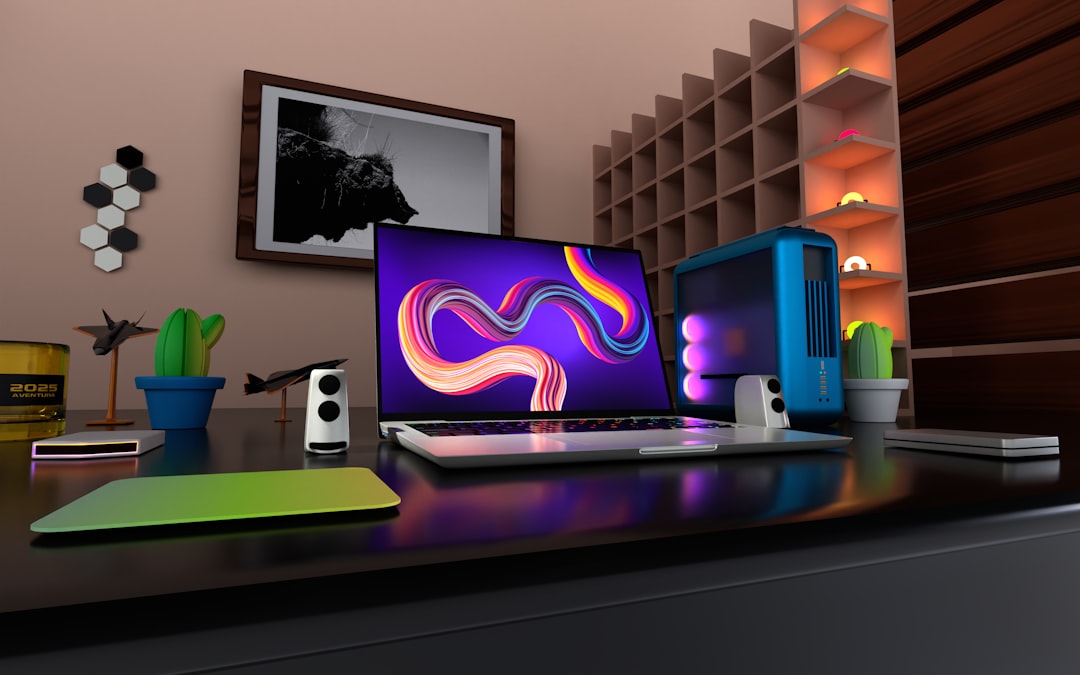
Creating a tech-themed signature for forums or social media is a fantastic way to express your creativity and technical skills. A well-designed signature combines composition, color effects, and typography to convey a futuristic or digital aesthetic. This guide covers the fundamentals for beginners, from selecting a render to applying bevel effects and choosing fonts.
Composition and Render Placement
The foundation of any signature is its composition. Start with a high-quality render (a cut-out character or object) that fits the tech theme. Position the render off-center to create visual interest. A common technique is to let the render extend beyond a border or frame, as seen in the example where the arm crosses the white border. This adds depth and a sense of movement. Use the rule of thirds to guide placement, and leave negative space for text or effects.
Color Effects and Beveling
Color sets the mood. Blue hues are popular for tech signatures because they evoke digital interfaces and neon lights. Apply a gradient map or color overlay in Photoshop to tint the render and background consistently. The bevel effect, often applied to the render’s edges, gives a 3D embossed look that mimics metal or plastic. In Photoshop, use Layer Style > Bevel & Emboss, adjusting depth and size to match the signature’s scale. For a subtle effect, keep the bevel soft; for a bold look, increase contrast.
Typography Tips
Font choice is critical. Sans-serif fonts like “Arial”, “Futura”, or “Orbitron” (a popular tech font) work best. Avoid overly decorative fonts that clash with the theme. Text placement should complement the composition, not compete. As suggested in the discussion, placing text at the bottom or along a line can balance the design. Use a small font size and add a drop shadow or glow to integrate it with the tech aesthetic. Keep text minimal—often just your username or a short phrase.
Final Thoughts
Practice is key. Experiment with different renders, color schemes, and fonts. Use online resources like Photoshop tutorials or GIMP guides to refine techniques. Remember, feedback from the community is invaluable—don’t hesitate to ask for critiques. Happy designing!
Knowledge Hub Summary: Tech signature design combines composition, color effects, and typography to create a futuristic aesthetic. Beginners should focus on render placement, bevel effects, and font choice to craft compelling forum signatures.
 Official References & Documentation:
---
title: Tech Signature Design Workflow
---
graph TD
  A[Start] --> B[Select Render]
  B --> C[Choose Background]
  C --> D[Apply Color Effects]
  D --> E[Add Bevel to Render]
  E --> F[Position Text]
  F --> G[Apply Text Effects]
  G --> H[Export Signature]
I’ve been working in Photoshop for a while, but this is my first real attempt at a tech-themed signature. I wanted to try something different from my usual style, so I experimented with a blueish color effect and a beveled look for the render. The font was just a random pick, but I think it fits the tech vibe. Any feedback on the composition or text placement would be great!
I really like it! It’s better than anything I could do. The blueish effect you added gives it a nice futuristic feel. One suggestion: I think the text might look better if you placed it at the bottom, under the lines, instead of where it is now. But overall, great job!
Nice work, Señor Maniac! I especially like how the render’s arm extends beyond the white border and meets the outer border, creating a cool beveled effect. You clearly paid attention to the font choice—it matches the techy look perfectly. You mentioned it’s a different style for you, but it definitely works. Keep experimenting!
Thanks for the feedback! By ‘different style,’ I meant this is a departure from my usual approach. I usually do more abstract or fantasy-themed signatures, so this tech style was a fun challenge. The text was actually a random pick, but I’m glad it worked out. I’ll try placing the text at the bottom next time as suggested.
Advanced Bevel Techniques for Depth
To achieve a more realistic bevel effect, consider using multiple layer styles. Start with a standard bevel, then add an inner shadow with a darker color to simulate ambient occlusion. For the highlight, use a gradient overlay with a metallic sheen. This combination creates a surface that reflects light like brushed metal. Experiment with the angle of the light source (global light) to ensure consistency across all elements.
Color Harmonies for Tech Themes
Blue is classic, but don’t limit yourself. Analogous color schemes (blue, cyan, purple) or complementary (blue and orange) can make your signature pop. Use Photoshop’s Color Picker to create a palette, then apply it via gradient maps or adjustment layers. For a cyberpunk feel, add neon pink or green accents.
Hey everyone! Great discussion on tech signatures. I’ve been making them for years, and here’s a pro tip: use layer masks to blend the render with the background seamlessly. Also, for that neon glow effect, duplicate your text layer, add a Gaussian blur, and set the blend mode to Screen. It’s super easy and looks amazing. Keep sharing your work!