
Unsplash search: “CMS installation server setup”
So you’re trying to install modules and components in Mambo and hitting a wall. I’ve been there. Mambo was great in its day, but it’s been dead for years. The project forked into Joomla back in 2005, and that’s where the active development went. If you’re starting fresh, I’d strongly recommend using Joomla or WordPress instead. But if you’re stuck on Mambo for legacy reasons, the principles are similar, just with older code.
The Real Issue: File Uploads and Permissions
Your problem likely comes down to incomplete uploads or incorrect file permissions. When you upload modules or components via the admin panel, the system extracts them into the correct directories. If that fails, it’s usually because:
- The zip file was corrupted during upload (try re-uploading via FTP instead)
- PHP memory or upload limits are too low (check
php.inior ask your host) - File permissions on the
tmpormodulesdirectory aren’t writable (set to 755 or 775)
Modern Workflow: Joomla 5.x Example
Today, installing extensions in Joomla is straightforward:
- Download the extension (usually a .zip from the developer’s site).
- Log into Joomla admin → System → Install → Extensions.
- Drag and drop the .zip file into the upload area, or click Or browse for file to select it.
- Click Upload & Install. Joomla handles the rest.
If you get errors, check the System → Information → Directory Permissions page to ensure all directories are writable. Also, enable Maximum Upload Size in Global Configuration if your extension is large.
Configuring the Database
Unlike standalone scripts like PHP-Nuke, Mambo (and Joomla) require a database connection during initial installation. But for adding modules after the CMS is already running, you usually don’t need to edit any MySQL files manually. The installation script should handle creating any necessary tables. If a module requires additional database tables, it will create them automatically when you install it. If that fails, ensure your MySQL user has CREATE privileges.
Troubleshooting Tips
- Clear your Joomla cache (System → Clear Cache) after installing.
- Check the PHP error log – your host usually provides access via cPanel or a log file.
- Try installing via FTP: Upload the extracted module folder directly to
/modulesor/components(for Mambo) or/administrator/components(for Joomla), then go to Extensions → Manage → Discover and click Discover to find it.
Modern 2026 Trends & Best Practices
As of 2026, the CMS landscape has evolved significantly. Headless CMS architectures (like Strapi or Contentful) are popular for decoupled front-ends. But traditional monolithic CMS users still rely on Joomla 5.x and WordPress 6.x. Key modern practices include:
- Use a staging environment for testing extensions before going live.
- Keep extensions updated automatically via CLI tools or admin dashboards.
- Containerize your setup with Docker for consistent development and deployment.
- Audit extensions for security by checking vulnerability databases (e.g., Joomla! Security Center).
If you’re still on Mambo, I highly recommend migrating to Joomla. There are migration tools (like jUpgrade) that can move your content, users, and modules. The community support for Mambo is nearly non-existent in 2026, while Joomla has an active ecosystem of thousands of extensions.
To get started with Joomla, visit Joomla.org and download the latest version. For Mambo legacy help, check the Mambo Foundation archives – but expect few updates.
Hope this clears things up. If you provide the exact error message you’re seeing, I can help further.
 Topic Overview (Wikipedia):
 YouTube Video: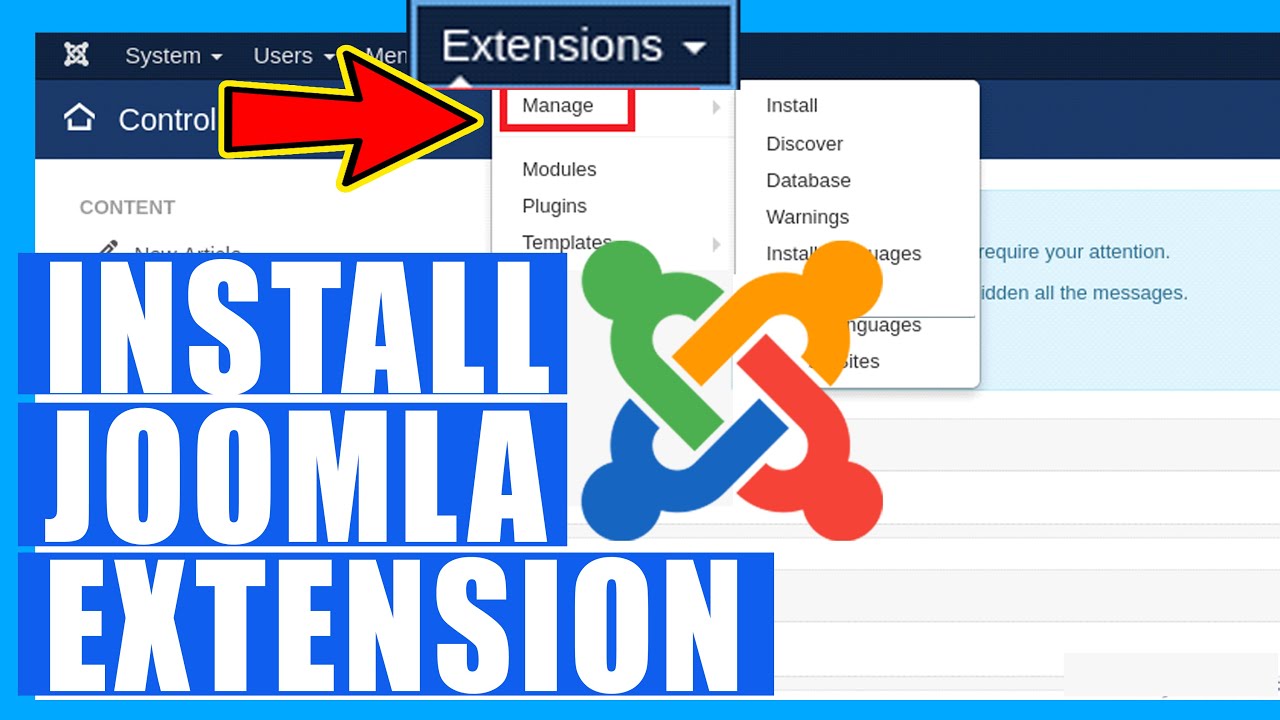
 Official Documentation & Reference Links: