I’m setting up my first website on Xisto and when I visit my domain, I get an ugly directory listing instead of my actual page. I’ve uploaded my files but it shows the folder structure. How do I make it show my homepage?
Understanding the Issue
When you see an “Index of /” page, it means the server can’t find a default index file in your root directory. The server tries to load files like index.html, index.php, or default.htm automatically. If none exist, it lists the directory contents.
Modern Fixes
-
Create a Default Index File
The simplest solution is to create an index.html (or index.php if you use PHP) in your public_html folder. Here’s a basic HTML5 template:
<!DOCTYPE html>
<html lang="en">
<head>
    <meta charset="UTF-8">
    <meta name="viewport" content="width=device-width, initial-scale=1.0">
    <title>My Xisto Site</title>
</head>
<body>
    <h1>Welcome to my website!</h1>
    <p>This is the homepage.</p>
</body>
</html>
Save this as index.html and upload to your public_html via cPanel’s File Manager or FTP.
-
Configure Directory Listing in cPanel
- Log into your Xisto cPanel account.
- Navigate to the Directory Privacy section or use File Manager to adjust permissions.
- You can also create or edit an
.htaccess file in public_html with this line to turn off directory listing:Options -Indexes
- But remember, even with listing off, you still need a default index file so visitors see content.
-
Verify Default Document Order
- In cPanel, go to Advanced → Index Manager (if available) or check the Select Default Index option.
- Ensure
index.html or index.php is listed first.
-
Common Index Files
index.html (static)index.php (dynamic)index.htm (older)default.htm
What About Xisto Credits?
Remember, you earn credits by participating in the forums, which you can use to keep your free hosting active. So don’t forget to engage and earn points while building your site.
Let me know if you still face issues. Once you have the index file, your page should appear.
Topic Summary: Learn how to show your web page instead of a directory index on Apache/cPanel. Covers index files, .htaccess, modern hosting platforms, security, SEO, and SPA routing.
 YouTube Video:
 Official Documentation & Reference Links:
Good advice above. I’ll add a couple of modern nuances.
Using PHP as Index
If you’re planning to use PHP (many do), rename your index file to index.php. cPanel handles it automatically. Here’s a simple example:
<?php
// index.php
echo '<h1>Welcome to My Xisto Site</h1>';
?>
.htaccess Best Practices
Even with an index file, it’s wise to disable directory listing for security. In Xisto, create or edit .htaccess in public_html:
Options -Indexes
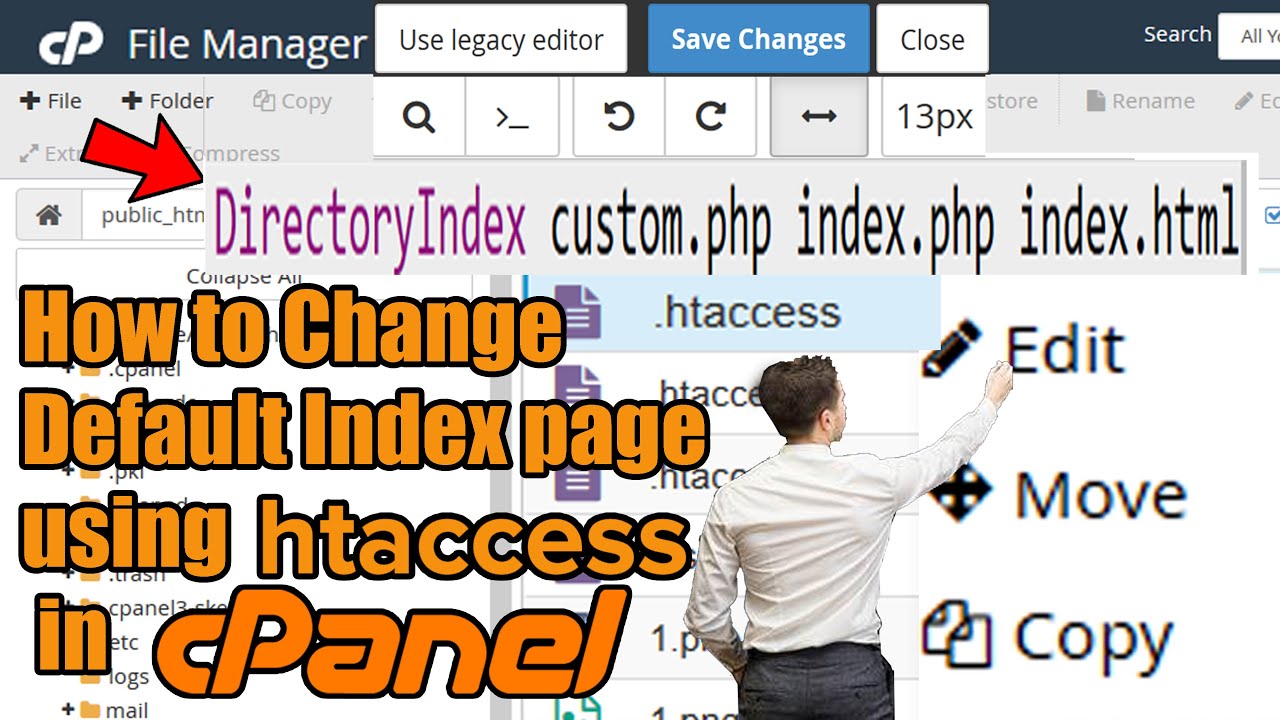
DirectoryIndex index.html index.php
The DirectoryIndex line ensures the server tries index.html first, then index.php.
Checking Your Default Document in cPanel
Actually, Xisto’s cPanel does have a Default Document setting under Advanced. You can reorder or add new index file names there. If you’re using a CMS like WordPress, you’ll need index.php as the default.
Troubleshooting
- Make sure you uploaded to the correct directory:
public_html (not www or a subfolder).
- File permissions: index files should be
644 (readable by all).
- Clear your browser cache after uploading changes.
Once done, your domain should display your page instead of the directory index.
Beyond the Basics: Modern Implications
The solutions covered so far—creating an index file and disabling directory listings—are foundational, but there’s more to consider in today’s web landscape. While Apache’s DirectoryIndex directive and .htaccess still work, many modern hosting environments have evolved.
Cloud & Platform-as-a-Service
Platforms like Netlify, Vercel, and Cloudflare Pages automatically serve a predefined index file (e.g., index.html) and don’t even expose directory listings. They use build commands to generate static sites. For PHP-based apps, cPanel remains common, but even there, the default document priority can be set globally. If you’re using a static site generator like Hugo or Jekyll, the output is already an index.html in the root.
Security & SEO
Disabling directory listings (Options -Indexes) is a security best practice, but it doesn’t hide individual files if someone guesses the URL. For sensitive sites, consider a robots.txt to disallow crawling, or password-protect directories via .htaccess. From an SEO perspective, having a proper index page with meta tags is crucial; directory listings have no content and are ignored by search engines.
Containerized Deployments
With Docker and Kubernetes, your web server configuration is baked into the image. For Nginx (which is now more popular than Apache), you’d use index index.html index.php; in the server block. No .htaccess equivalent—you must edit the config file and reload. This is more performant but less accessible for beginners.
Single-Page Applications
SPAs like React or Vue often use client-side routing. To avoid 404s on refresh, you need to configure your server to serve index.html for all routes. This is done via a rewrite rule, not just a default document. For Apache: FallbackResource /index.html. For Nginx: try_files $uri /index.html;. This goes beyond the simple directory index issue.
Key Takeaways
- Always have an index file in your web root.
- Disable directory listing via
.htaccess or server config.
- Understand your hosting environment: shared hosting (cPanel), cloud (config files), or static hosts.
- For modern frameworks, additional rewrites may be needed.
The old “directory index” problem is a rite of passage, but the solutions now extend into deployment and architecture choices.